
Create, edit, search, and share templates using our platform. Follow these straightforward steps for seamless template management.
1. Create New Templates
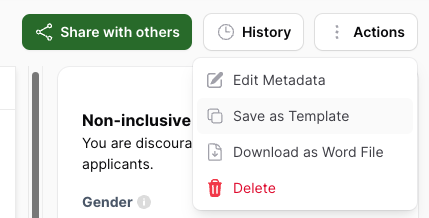
Generate a new text entry and save it as a template by clicking on “Save as Template” by utilizing the “Action” button located in the upper right corner of the editor.
2. Edit Templates
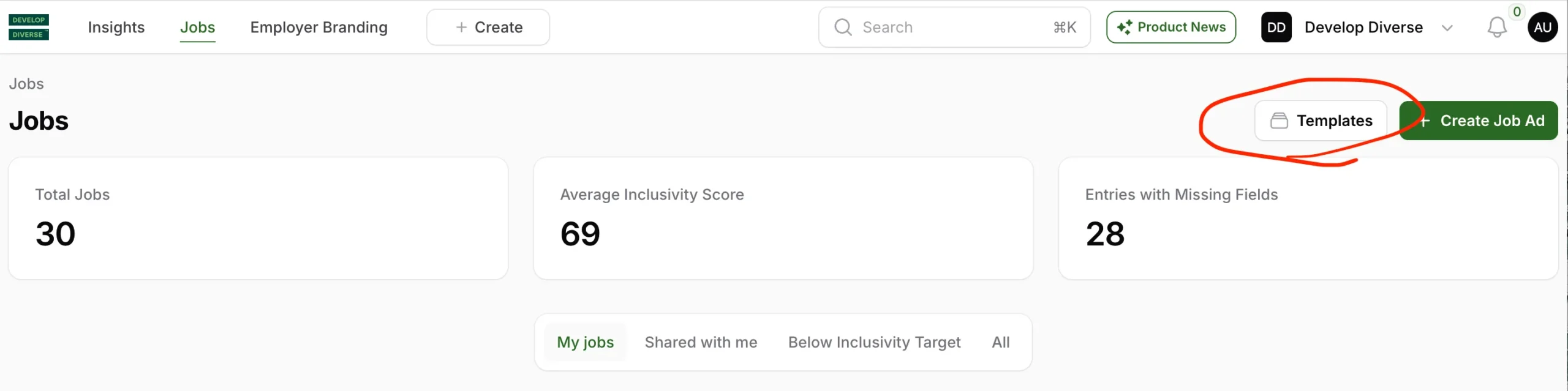
To access the template overview, click on Jobs in the top navigation, then select Template. Find the template you want to update and click Edit. You can edit templates you’ve created, but for other templates, you’ll need to ask your admin for help.
3. Search for Templates
Looking for a specific template? You have two options:
- Search by Job Title: Enter the job title in the search field.
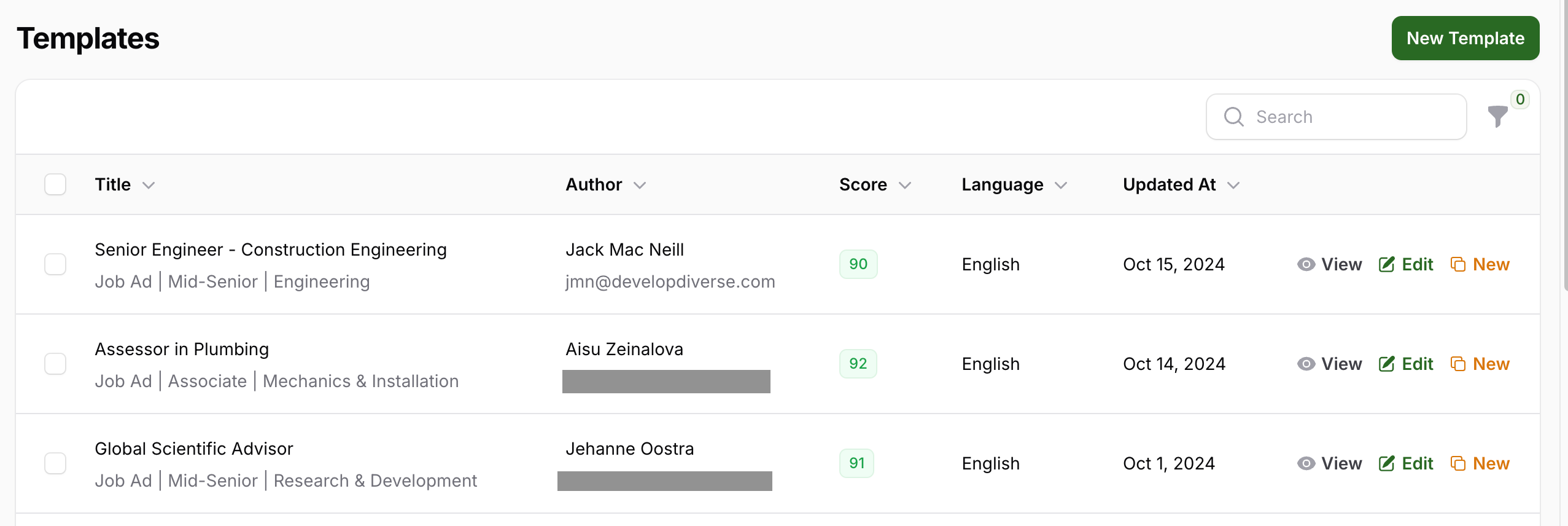
- Filter Results: Click on the filter icon above the templates to filter by department, seniority, and language.
4. Share Templates
You have two options:
- Share your filtered template search results by copying the URL and sending it to others. The recipient will view the template overview with your applied filters.
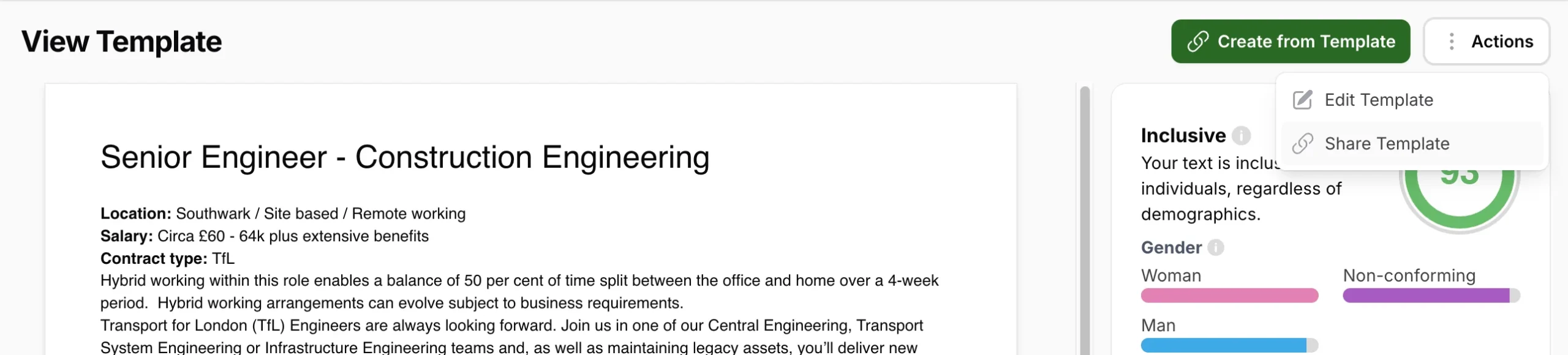
- Open the template and click “Actions” and “Share Template” to share the URL of the template with your colleagues.
5. Create a Job Ad from a Template
To create a job ad from a template:
- Navigate to the template overview through the left navigation.
- Click on the “New” button for the template you want to use for your new job ad.