How to Get Develop Diverse in Word

Say goodbye to copy-pasting. Use Develop Diverse directly in Microsoft Word. 

Highlights

Say Goodbye to Copy-pasting

With the Word integration you can write directly in Word. An easy way to start saving time!

A Warm Welcome to Track Changes and Spell-Check

Use unique Word functionalities like ‘Track Changes’ and automatic Spell- check together with Develop Diverse.

Stay in Control

You control, directly in Word, when you want to use Develop Diverse and see highlights. All other times, nothing will be accessed.

Quick Sharing

Share your job ad with a colleague and hiring manager directly from Word.

How to get the Microsoft Word Integration

French Language

Parlez-vous français? We’ve been working hard to add another language to our platform - and it’s here! We’re happy to announce that French language support is now available in Develop Diverse.

Start using the Develop Diverse in Word

Once the Develop Diverse Add-in has been installed, you can start using it on your computer. Simply open the Develop Diverse Add-in, start writing, or continue working on an existing job ad.

Request a one-time installation

A Microsoft Administrator (usually someone in your IT/Tech Department) needs to install the Add-in. We have a technical guide for easy installation.

See how it works

Quick Overview

Once the Develop Diverse Add-in is installed and activated in your Word application, you will see the highlights as usual. Your text is automatically saved ‘in the cloud’, so you will also have access to it on the platform, plus you can choose to save your document on your computer.

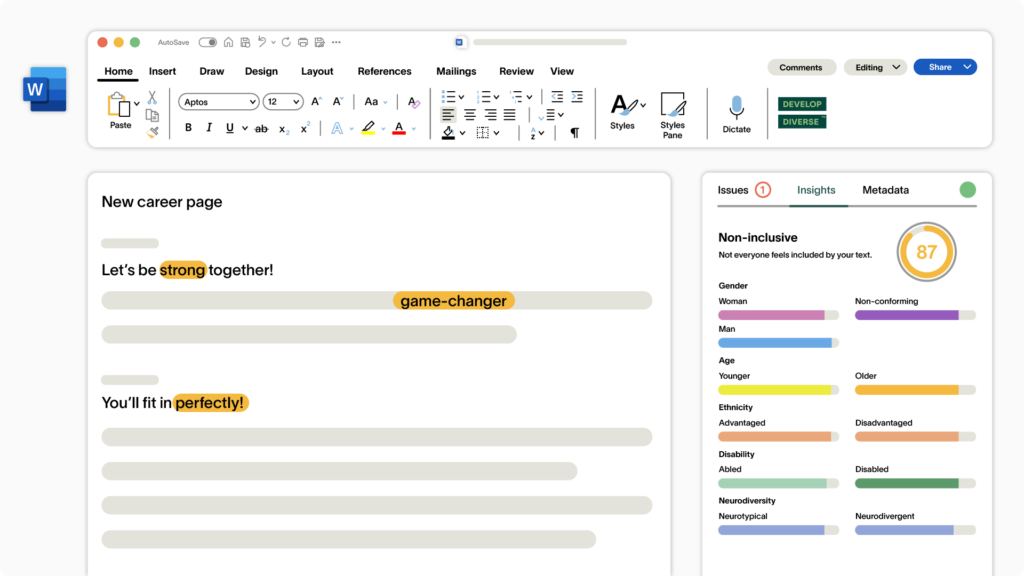
Yes, you will see the Inclusivity score and all other insights as usual.

Yes, you have full access to all metadata fields (e.g., Requisition ID, Department, and Country) you usually fill out in the platform.

Yes. You can save your text as a Word document, and store it where you usually would store your documents. When saving, your text will also be saved in ‘Text Entries’ in the platform, just like it would if you were working in the platform.


Yes. If you want to share or invite someone to collaborate, you go to ‘Metadata’ -> Collaborators, and type in their name or e-mail as you would do in the platform.

Yes. When you open up the Develop Diverse Add-in Word, you will see your latest work, and you will be able to search for old job ads as well.

Yes, privacy by design. You control when you want to use the integration and see the highlights. The Add-in can only access text when it is opened by the user, and the add-in is never opened by default. 

Of course. Run a spell check on your text automatically as you type – exactly as you know it.


Yes, when starting you decide whether you want to create a job ad, employer branding text, or even start from a saved template.

If you have any questions, feel free to reach out to us at support@developdiverse.com.