Ensure all your job posts are inclusive and attract higher-quality candidates by integrating Develop Diverse into your job posting process. Search for your job post in Develop Diverse, use the bias language checker, replace non-inclusive terms, and seamlessly sync your inclusive job ads back to Teamtailor.
Inclusive job posts have resulted in a 68% increase in women applicants and a 54% rise in total applicants for our customers.
Getting started
First things first, to enable this integration you must have an agreement with Develop Diverse so start by reaching out to your contact person at Develop Diverse. We will then unlock the integration!
Create Teamtailor API key
In Settings, under the Integrations section, select API Keys.
Click on New API Key
- Write a name Develop Diverse
- Select API scope
- Select Admin (suggested) to sync the hiring team to Develop Diverse, so that you everyone has direct access to the right jobs in Develop Diverse.
- Select Internal to sync only jobs and departments. You will have to add collaborators manually to every job.
- Select Read and Write
- Click Create
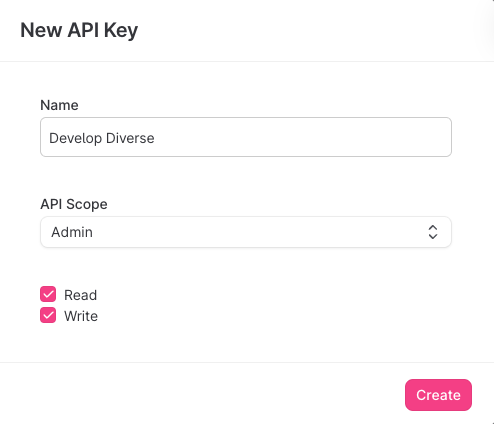
This settings ensures that we can sync your jobs and job posts from Teamtailor to Develop Diverse, while also allowing us to sync your inclusive job ads back to Teamtailor.
Activate Integration in Teamtailor Marketplace
- Head over to Teamtailor Marketplace and locate the Develop Diverse integration under the Partners section.
- Click activate and paste Client ID, Client Secret, and Company ID from Develop Diverse into their respective fields.
- Select the created Teamtailor API key and click Finnish installation.
How to set it up in Develop Diverse
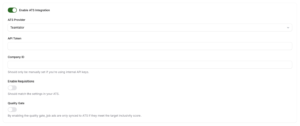
- Go to Account Settings
As an admin, click on your avatar and select Account Settings. - Enable ATS Integration
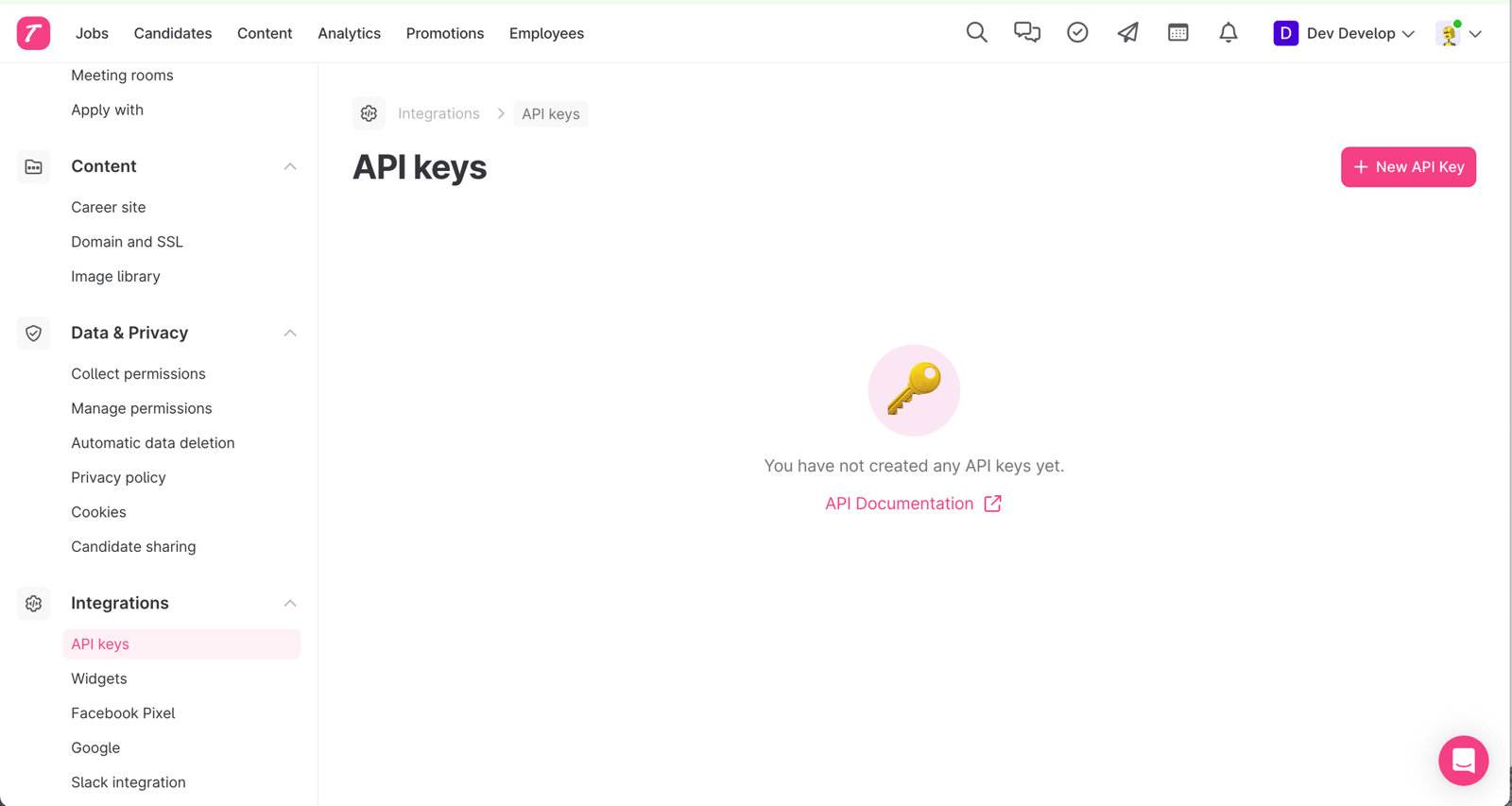
Under the Integrations section, find ATS. Turn on the toggle to enable ATS integration. - Choose Teamtailor
Select Teamtailor as your ATS provider - Enter API Token
Enter your Teamtailor API Token. Read here how to get the API Token. - Fill in CompanyID in case you have an “Internal” API Token
You can find the companyID in the Teamtailor URL. Go to your Teamtailor dashboard and copy the companyID from the URL.
For example: https://app.teamtailor.com/companies/CompanyID/dashboard - Enable Requisitions (optional)
If you use Requisitions in Teamtailor drag this toggle to the right.
- Set up the Quality Gate (Optional)
Want to ensure your job ads meet your inclusivity goals? Enable the Quality Gate so that only job ads hitting your target inclusivity score can be synced back to your ATS. - Save changes
Click Save, and you’re done! All your job details from Teamtailor will now sync to Develop Diverse, making it easier to draft and sync inclusive job ads.
Data synced with Develop Diverse
These attributes are synced by the Teamtailor integration.
| Develop Diverse | Data flow | Teamtailor |
| Requisition | Requisition | |
| Job | Job | |
| Department | Department | |
| Users | Users |
Workflow
Find your job in Develop Diverse
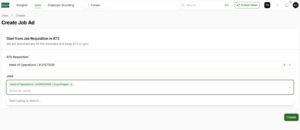
Start by searching for the job requisition from your ATS in Develop Diverse. Select the job you want to work on. The job ad and all its metadata from ATS will automatically be synced to Develop Diverse. You can start analyzing and improving the inclusivity of your job ad right away!
Managing Metadata
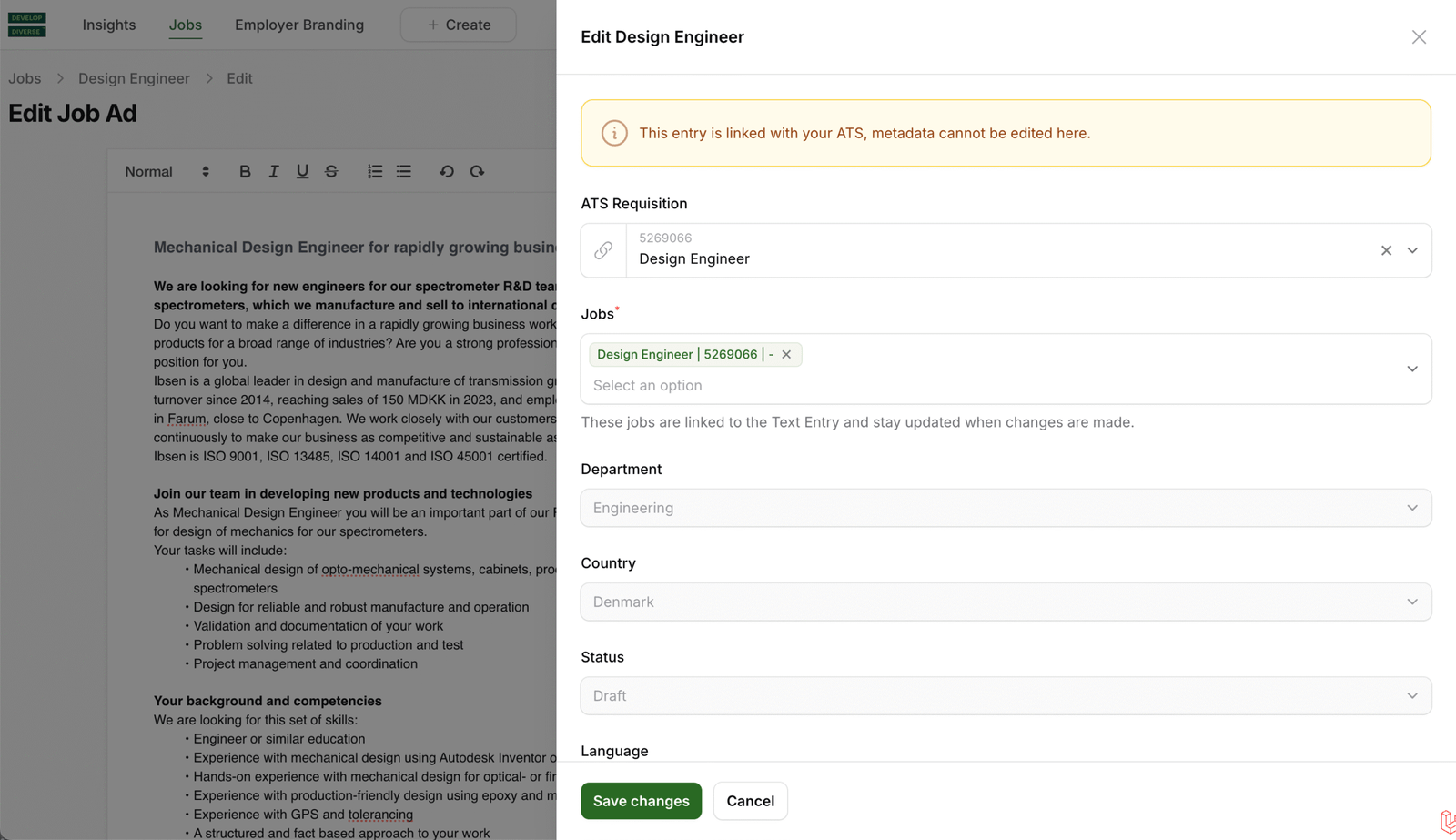
- Link or unlink jobs: Use the metadata section to link or unlink ATS requisition IDs or jobs.
- Update Metadata: To change other metadata fields, make the changes in ATS. These updates will sync automatically with Develop Diverse.
Syncing Back to your ATS
Once your job ad is inclusive and ready to go, it will automatically sync back to your ATS.
- If the Quality Gate is enabled, syncing will only happen once the job ad meets your inclusivity target.
Support
If you have any questions or need support, feel free to reach out to us at support@developdiverse.com.