Easily connect Teamtailor with Develop Diverse to create, edit, and sync inclusive job ads automatically. Follow these quick steps to get started!
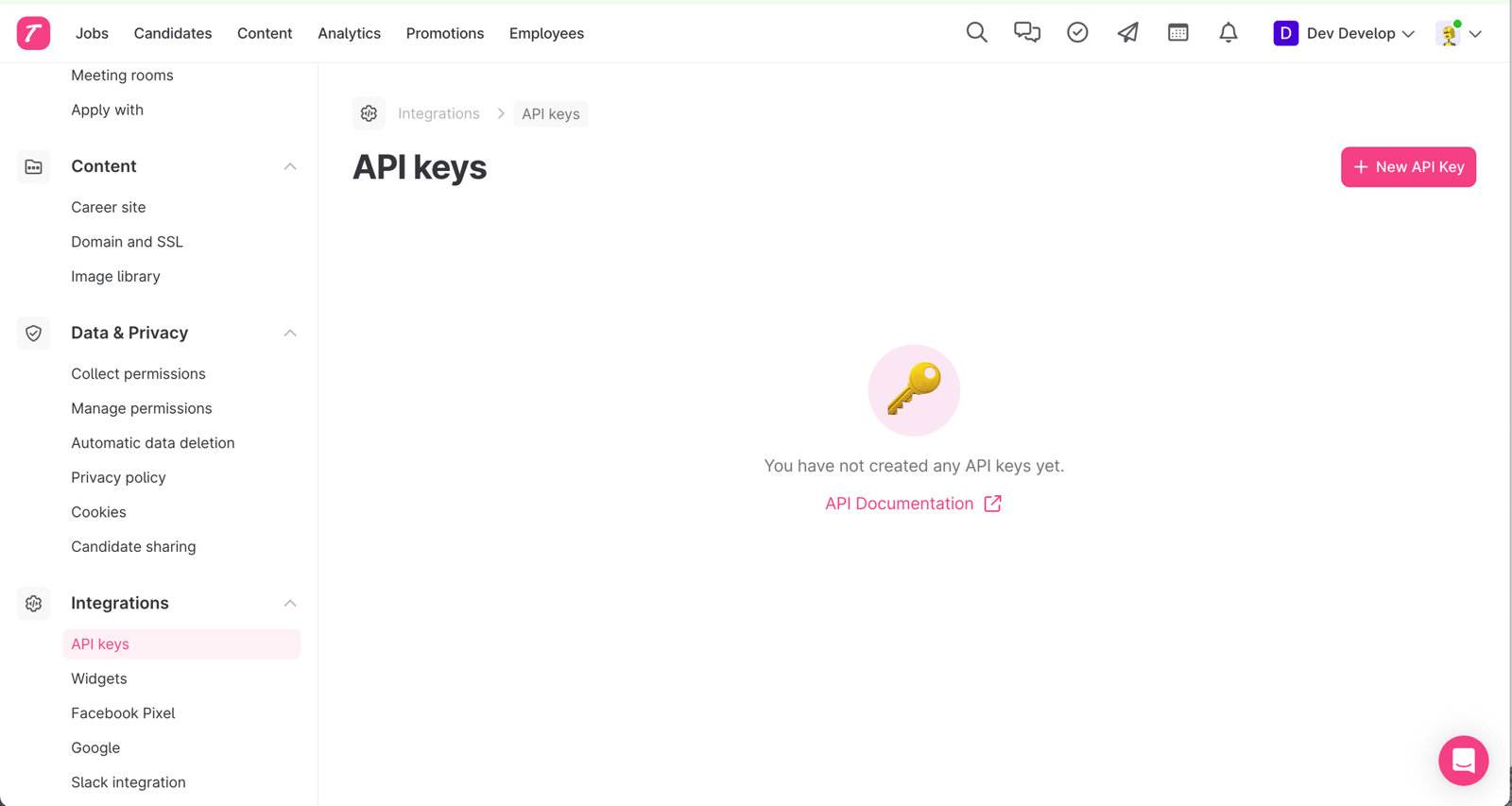
Create Teamtailor API key
In Settings, under the Integrations section, select API Keys.
Click on New API Key
- Write a name Develop Diverse
- Select API scope
- Select Admin (suggested) to sync the hiring team to Develop Diverse, so that you everyone has direct access to the right jobs in Develop Diverse.
- Select Internal to sync only jobs and departments. You will have to add collaborators manually to every job.
- Select Read and Write
- Click Create
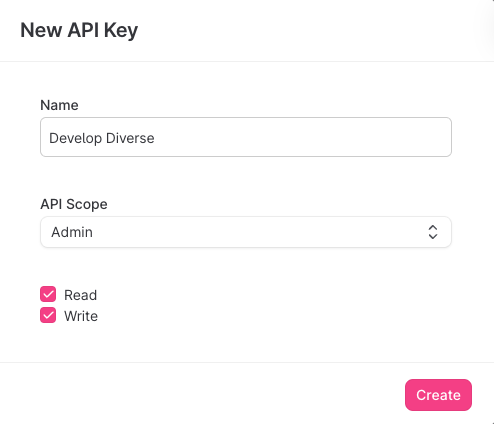
- This settings ensures that we can sync your jobs and job posts from Teamtailor to Develop Diverse, while also allowing us to sync your inclusive job ads back to Teamtailor.
How to set it up in Develop Diverse
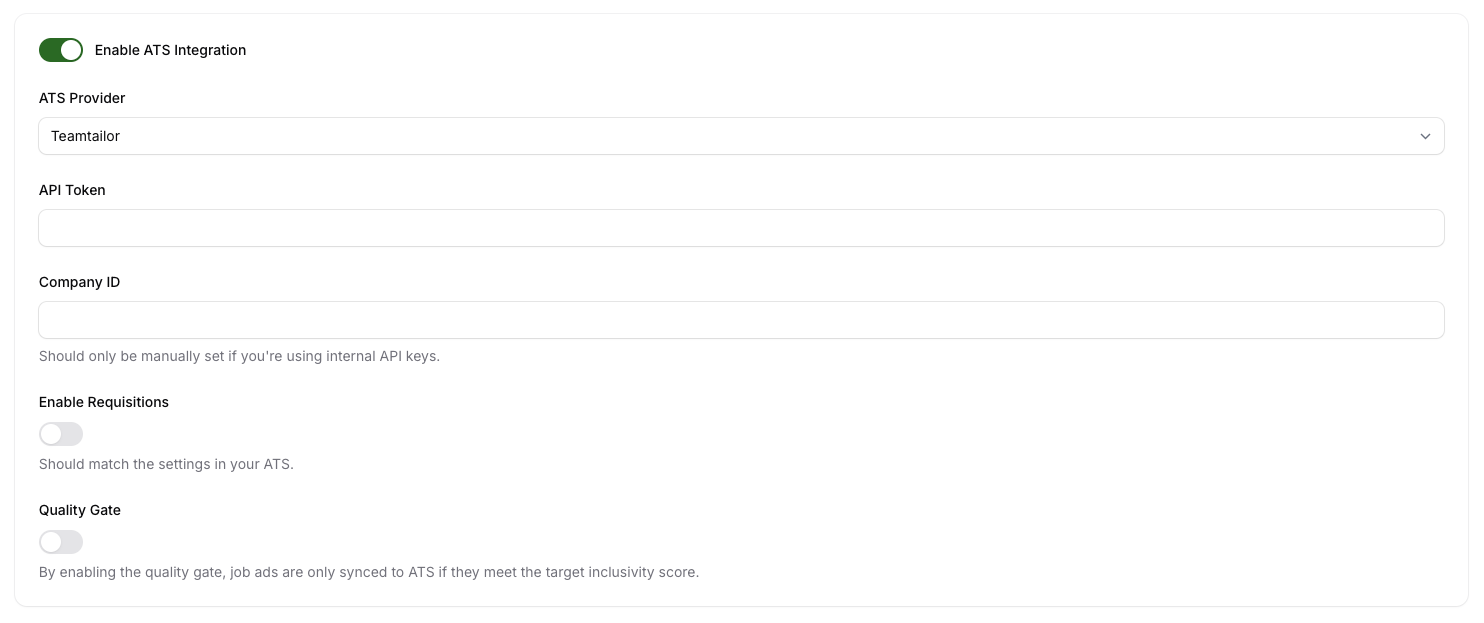
- Go to Account Settings
As an admin, click on your avatar and select Account Settings. - Enable ATS Integration
Under the Integrations section, find ATS. Turn on the toggle to enable ATS integration. - Choose Teamtailor
Select Teamtailor as your ATS provider - Enter API Token
Enter your Teamtailor API Token. Read here how to get the API Token. - Fill in CompanyID in case you have an “Internal” API Token
You can find the companyID in the Teamtailor URL. Go to your Teamtailor dashboard and copy the companyID from the URL.
For example: https://app.teamtailor.com/companies/CompanyID/dashboard - Enable Requisitions (optional)
If you use Requisitions in Teamtailor drag this toggle to the right.
- Set up the Quality Gate (Optional)
Want to ensure your job ads meet your inclusivity goals? Enable the Quality Gate so that only job ads hitting your target inclusivity score can be synced back to your ATS. - Save changes
Click Save, and you’re done! All your job details from Teamtailor will now sync to Develop Diverse, making it easier to draft and sync inclusive job ads.
- Go to Account Settings