
Configuring Microsoft Single Sign-On (SSO) is a straightforward process. Follow these steps for seamless integration:
Notice: SSO & SAML requires the Professional plan. Please contact support if the Authentication tab is not enabled in your Account Settings.
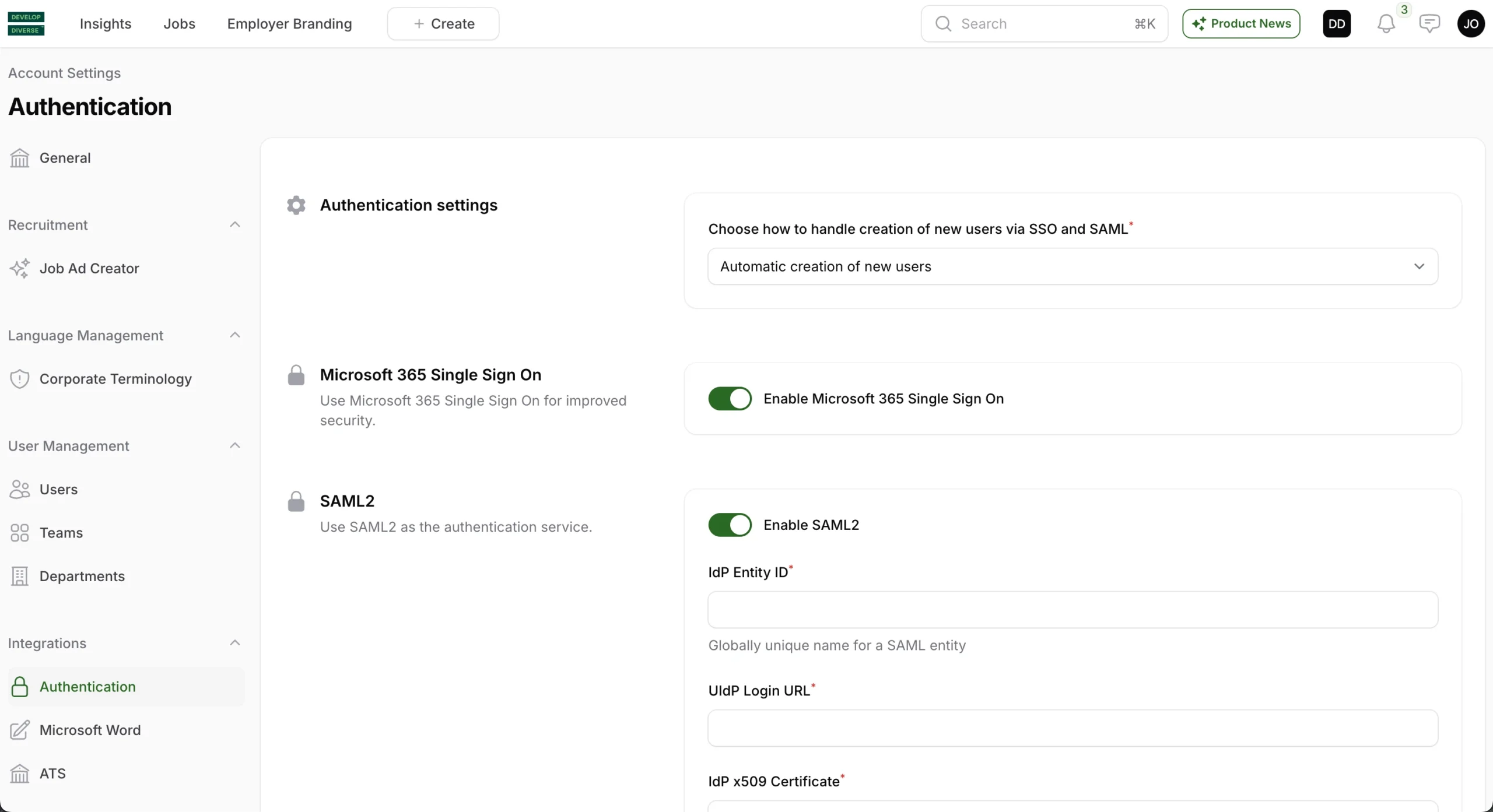
Step 1: Activate Microsoft SSO in the Develop Diverse Platform
The following can only be done by an Admin
- Access Account Settings via your avatar in the right upper corner.
- Choose the Authentication tab in the left navigation
- Activate the toggle “Enable Microsoft 365 Single Sign On”
- Click on the button “Save changes” at the bottom.
Step 2: Request Approval from Your Microsoft Administrator
If you’re a Microsoft Administrator, follow these instructions:
- Go to https://app.developdiverse.com.
- Click on “Sign in with Microsoft”
- Accept SSO on behalf of the organization.
Your SSO setup is now complete, ensuring a secure and streamlined authentication process for your organization.
This SSO flow is based on Microsoft OpenID Connect standard.