Authentication settings

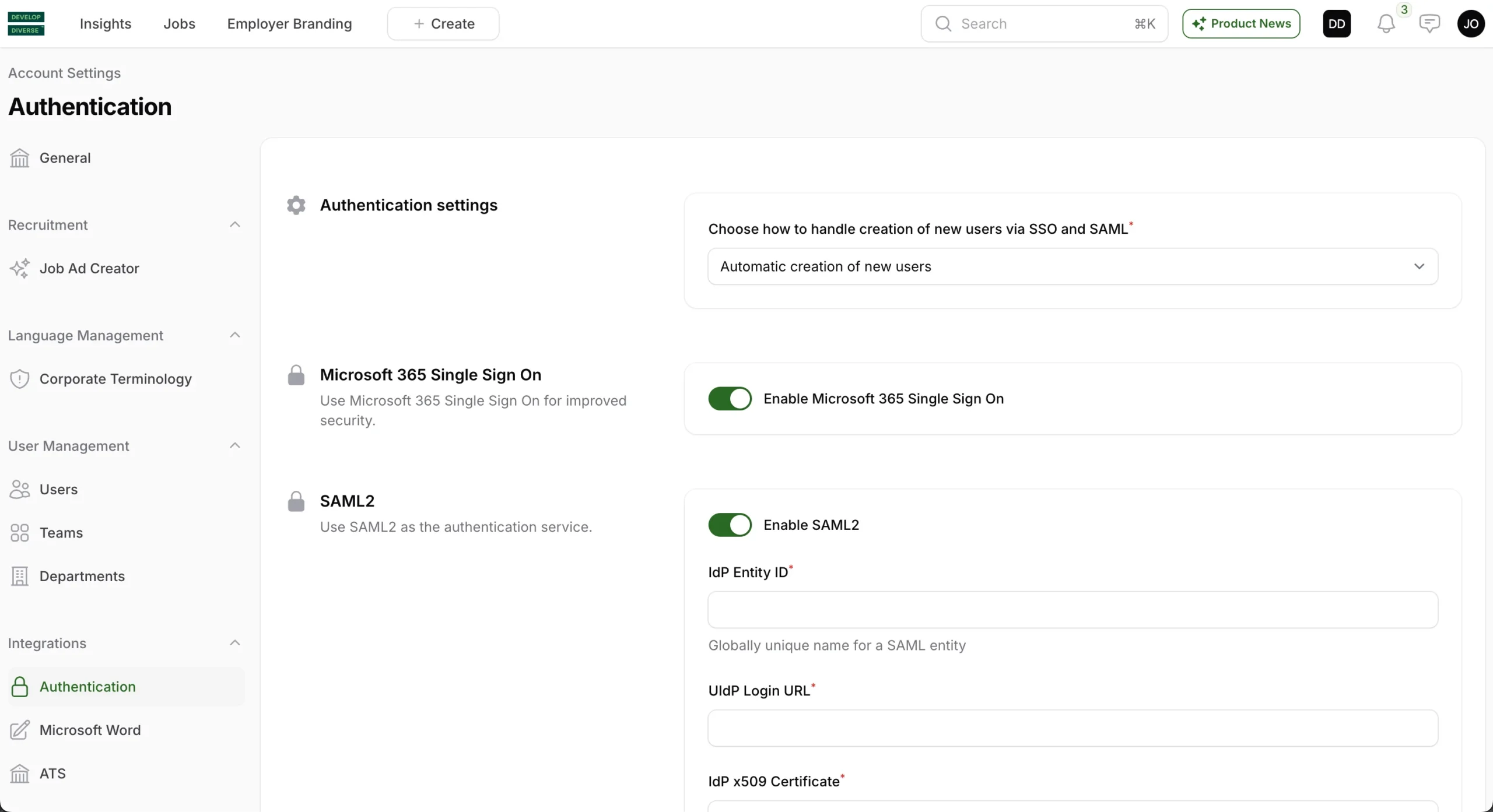
To access the Account Settings, click on your avatar in the right corner and then select Account Settings. Once there, click on Authentication in the left navigation under the header Integrations.

.Notice: SSO & SAML requires the Professional plan. Please contact support if the Authentication tab is not enabled in your Account Settings.

You have three options for handling the creation of new users via SSO and SAML:

1. Automatic Creation of New Users

  • New users are automatically created and can access the platform without needing approval from an administrator.

2. Requires Admin Approval

  • New users are automatically created, but they need approval from an admin to log in to the platform. Admins will receive an email notification about any new user creation and can approve the user in the User Management section.

3. Automatic Decline

  • New users are automatically declined. However, admins can manually approve a new user in the User Management section if needed.
 

Insights Overall

Discover comprehensive insights into your company’s performance by navigating to the Overall tab within the Insights section on the left menu.

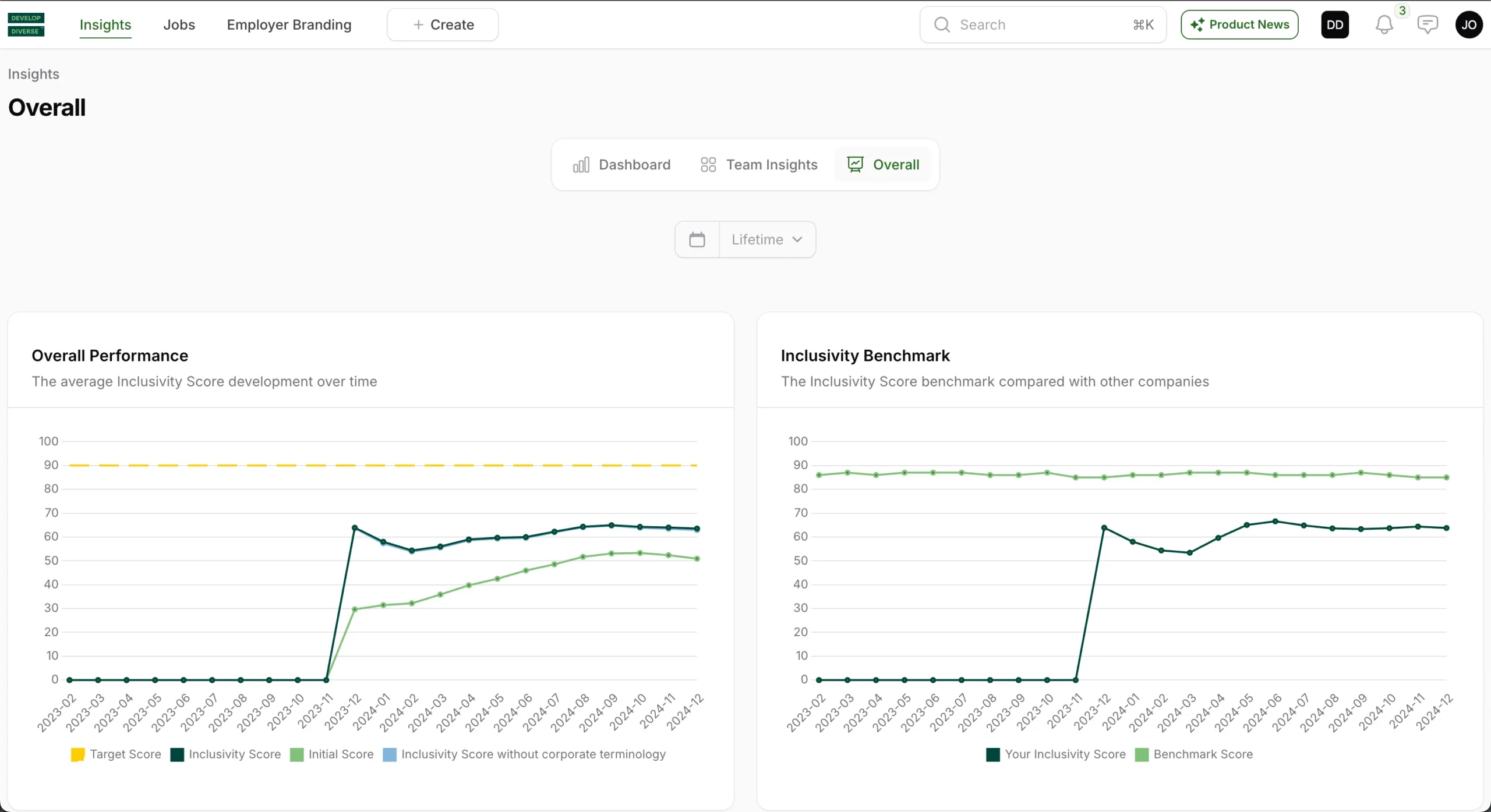
Overall Performance Graph

This graph illustrates your company’s inclusivity score performance:

  • Target Score (Yellow): Your company’s inclusivity target score. Aim to have all published entries above this target.
  • Inclusivity Score (Dark Green): The score after adjusting biased words in your text. Aim to surpass the target score (yellow line).
  • Team Score (Purple): The average inclusivity score of your team’s entries. Aim to exceed the target score (yellow line).
  • Initial Score (Light Green): The average inclusivity score of your text entries before adjustments.

Inclusivity Benchmark

In this graph, the average inclusivity score of your company over time is represented in dark green. The light green is the benchmark score, showing the average inclusivity score by all Develop Diverse customers. This allows you to compare how you are performing in comparison with other Develop Diverse customers.

Experience Level Performance

A bar chart offering insights into your team’s performance compared to other Develop Diverse customers and other teams in your company per seniority level of job ads.

  • Your Average Inclusivity Score (Light Green): The overall inclusivity score of job ads per seniority level for your company.
  • Your Team Score (Purple): Your team’s average inclusivity score of job ads per seniority level.
  • Benchmark Score (Dark Green): The average inclusivity score of all Develop Diverse customers per seniority.

Dashboard Employee

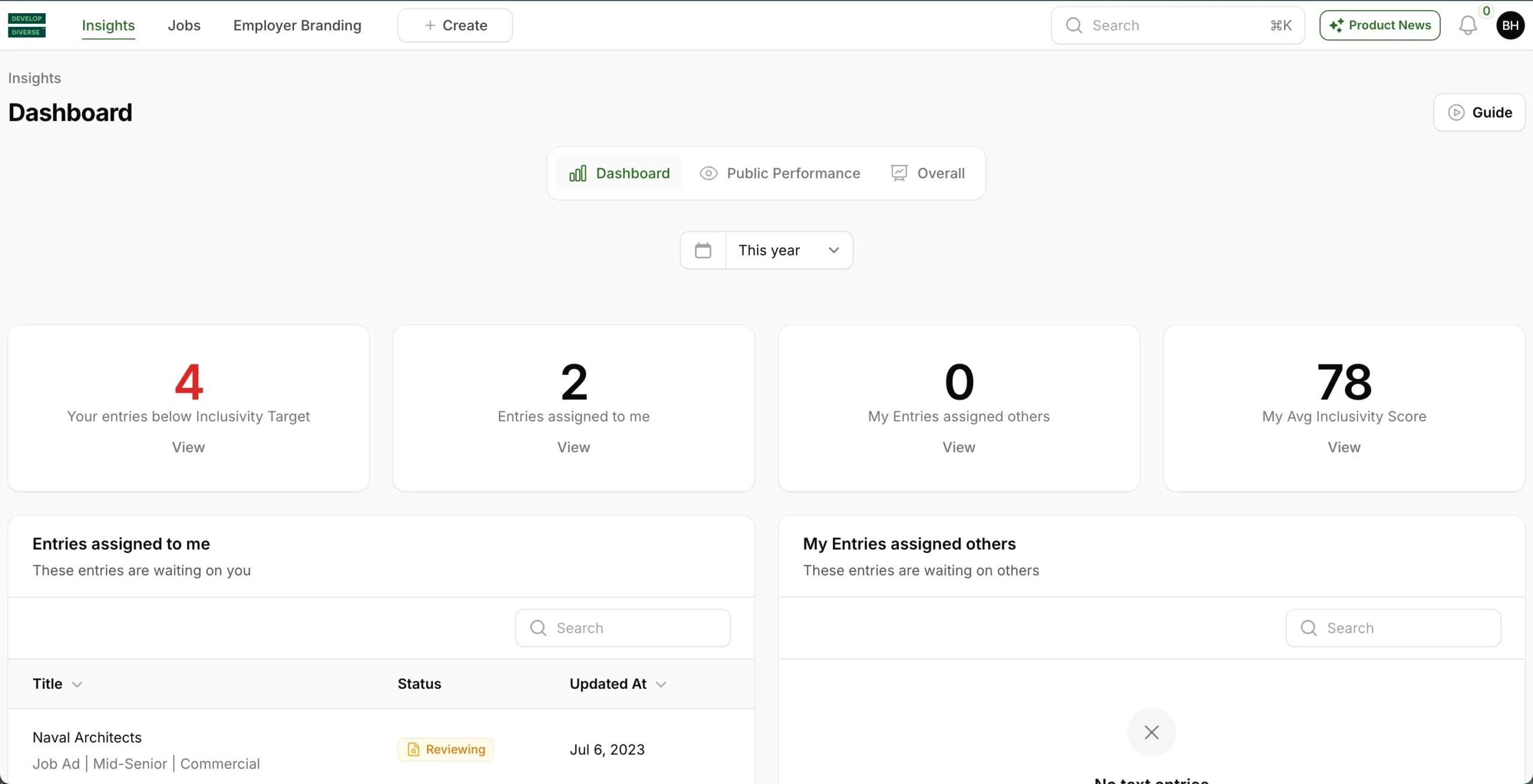
Your dashboard experience is tailored to your role within the platform. Let’s explore your dashboard features as an Employee:

Your Entries Below Inclusivity Target

This section displays the number of entries created within a set time period that fall below your company’s inclusivity target. Click “view” to see the entries that don’t meet the target.

Entries Assigned to Me

View all entries assigned to you within the set time period that are in draft or under review. Click “view” to see a list of entries requiring your action.

Entries Assigned to Others

Review entries in draft or under review, which you authored but are currently assigned to someone else. Click “view” to see a list of entries requiring action from others.

My Entries Assigned to Others

Check a list of entries authored by you that require action from others as they are still in draft or reviewing. Click on an entry to open and review.

Dashboard Manager

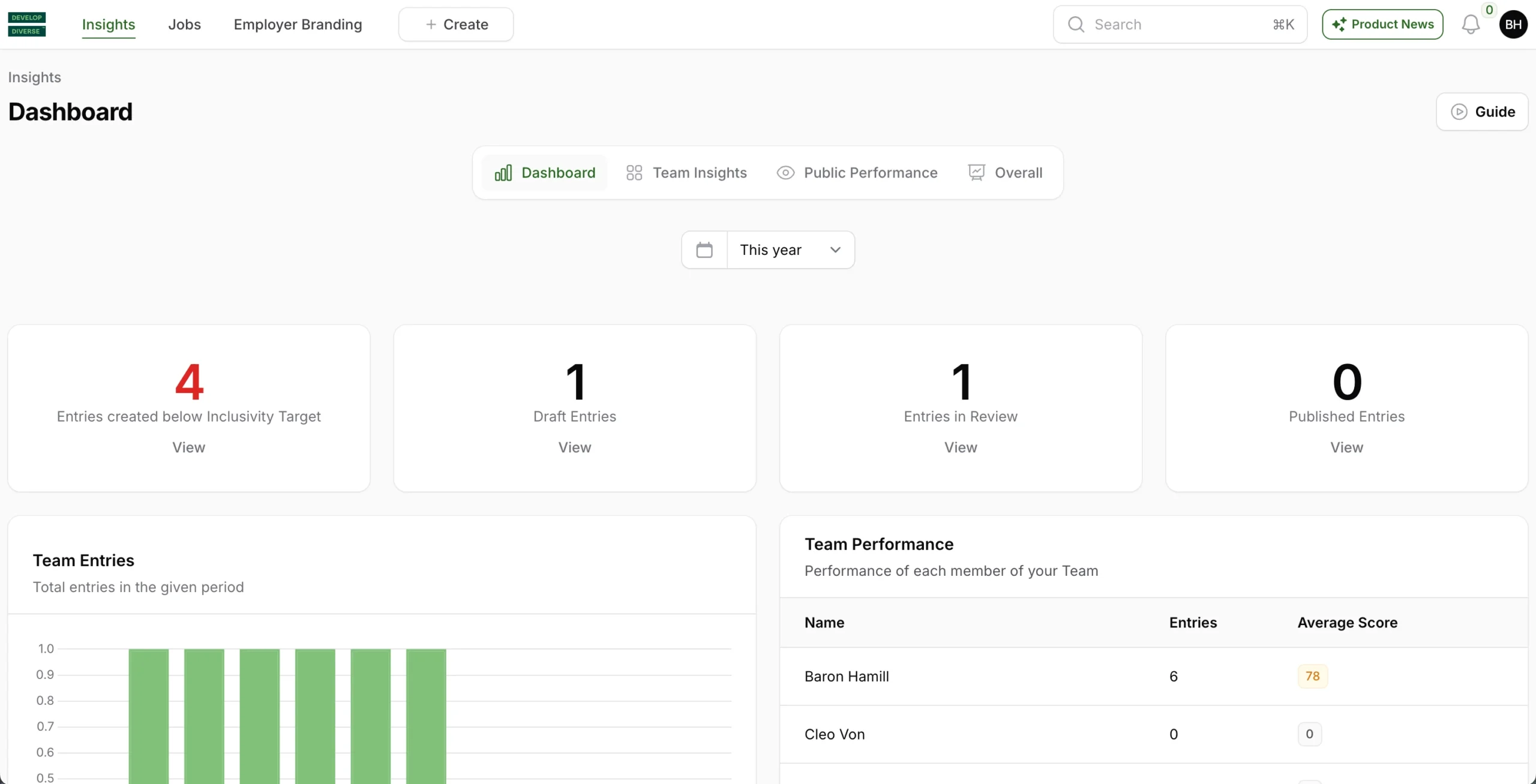
Your dashboard experience is tailored to your role within the platform. Let’s explore your dashboard features as a Manager:

Entries Created Below Inclusivity Target

This section presents the number of entries created by your team(s) within a set time period that fall below your company’s inclusivity target. Click “view” to identify and address entries that don’t meet the target.

Draft Entries

View all entries of your team(s) that are currently in draft within the specified time period.

Entries in Review

Review all entries of your team(s) that are currently in the reviewing stage within the specified time period.

Published Entries

Explore a comprehensive list of your teams’ published entries within the set time period. Click “view” to delve into the specifics of the published entries.

Team Performance

Review a list of your team members with details on their number of entries created and the average inclusivity score.

Team Entries

Track the total number of text entries created by your team(s) in the specified time period.

Team Insights

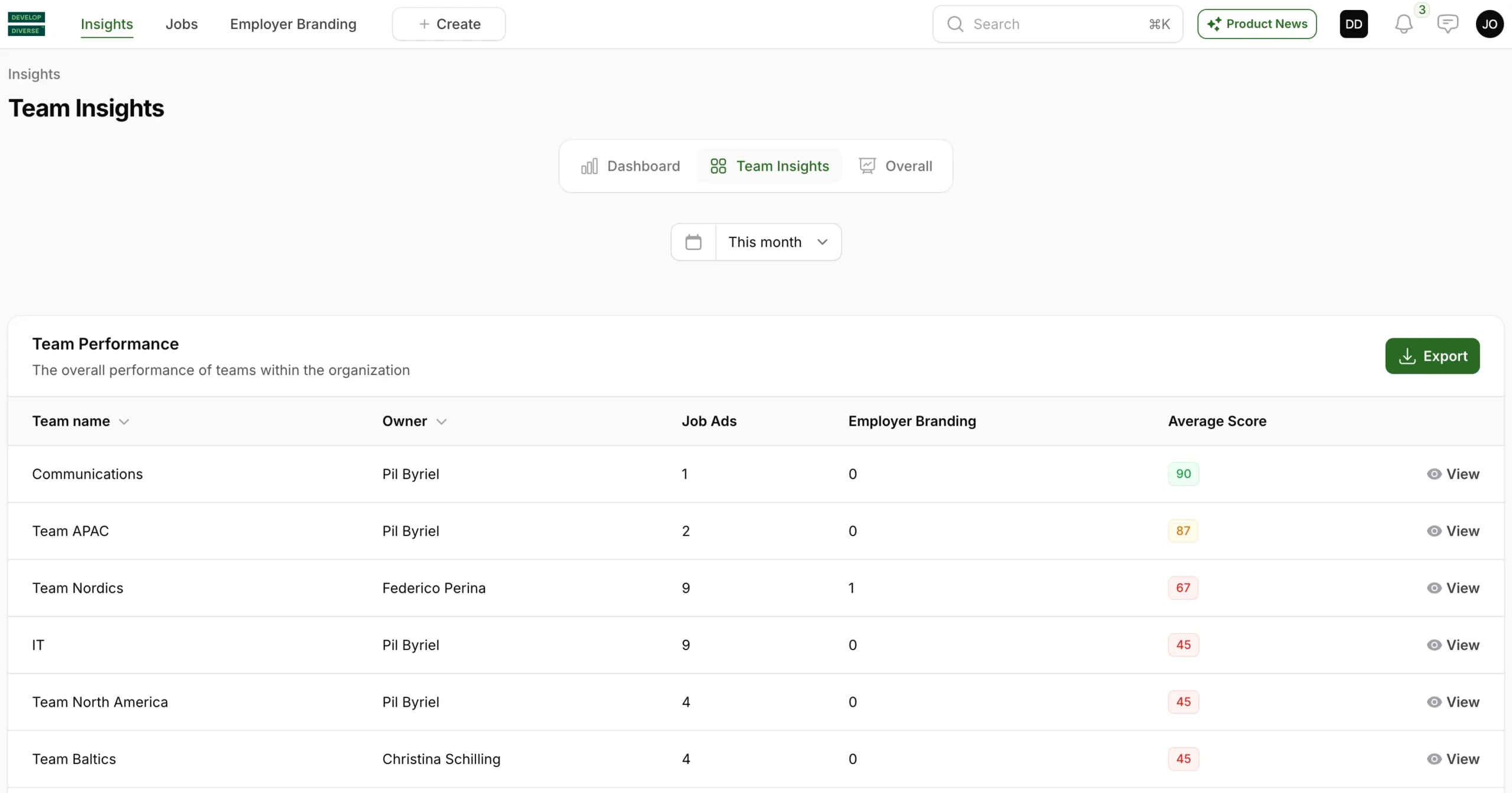
As an Admin or Manager, you can access comprehensive insights into your teams’ performance, including a breakdown of text entries by type and inclusivity score. Here’s how to navigate and make the most of these insights:

Accessing Team Insights

  1. Log in to the Develop Diverse platform and navigate to the Insights section in the header.
  2. Click on Team Insights to view a list of all teams with their respective number of created text entries and average inclusivity scores.

Drilling Down Into Team Insights

To get more detailed information about a specific team:

  1. Find the team you want to explore.
  2. Click on View next to the team name. This will open a new page with detailed insights for the selected team.

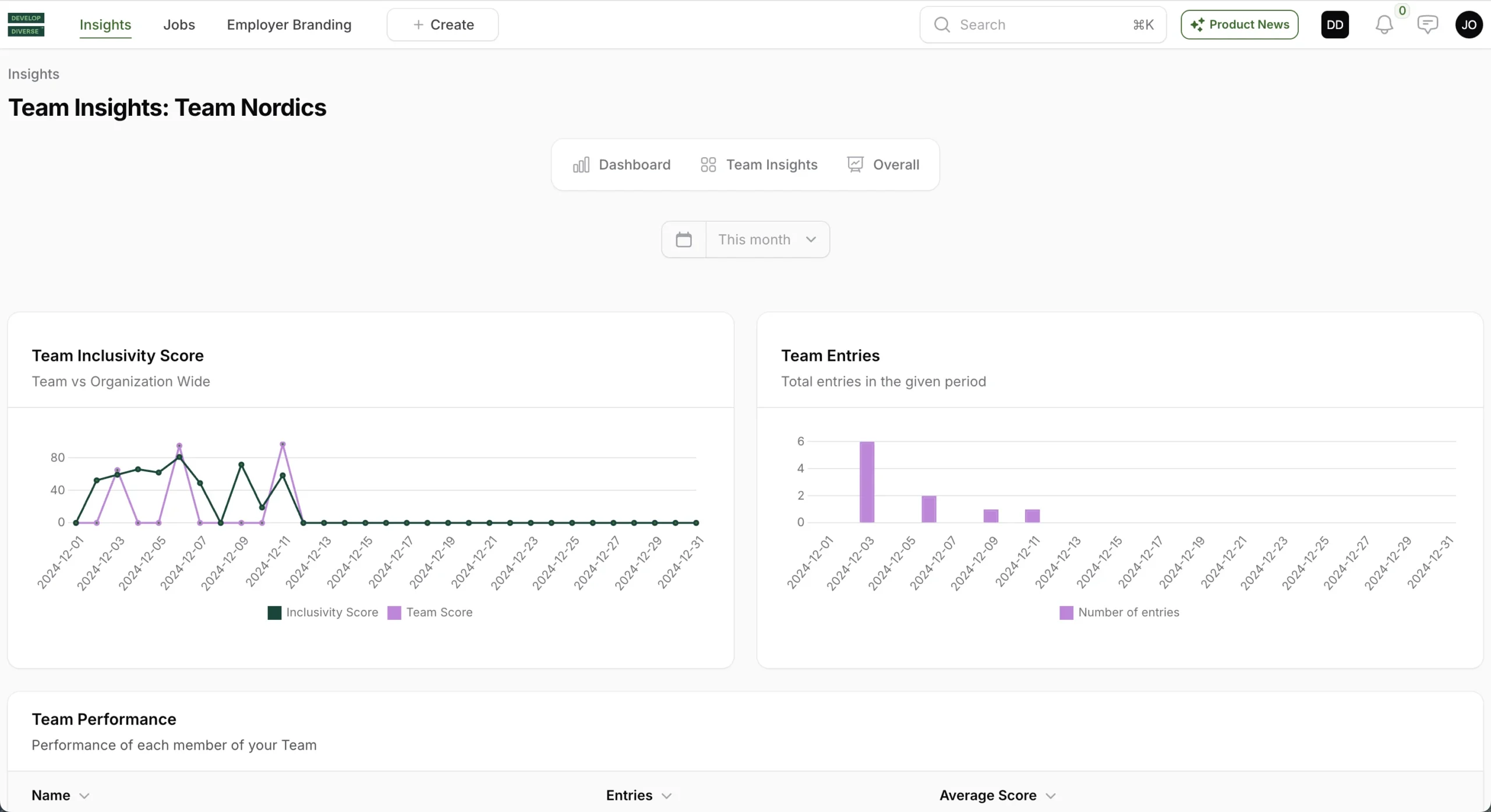
Team Inclusivity Score Graph

This graph provides a visual representation of your team’s inclusivity score performance:

  • Inclusivity Score (Dark Green): This represents the overall inclusivity score of your company.
  • Team Score (Purple): This indicates the average inclusivity score of the entries created by the team.

Team Entries

This section displays the total number of text entries created by the team.

Team Performance

View the performance of individual team members, including the number of entries they have created and their average inclusivity score.

Team Entries in Period

Here you can find all the text entries created by the selected team during the specified time period.

Dashboard Admin

Your dashboard experience is tailored to your role within the platform. Let’s explore your dashboard features as an Admin:

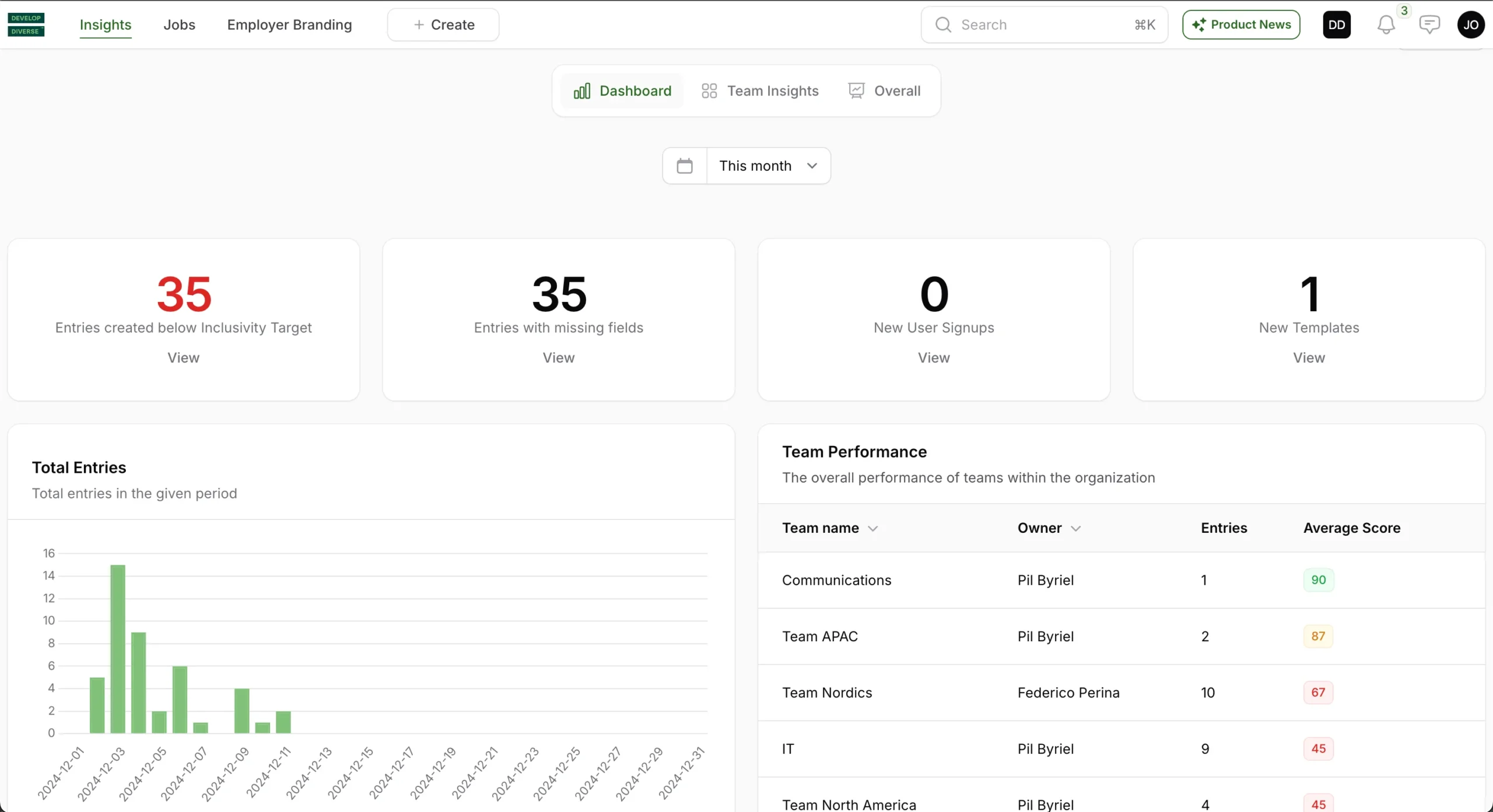
Entries Created Below Inclusivity Target

This section highlights the number of entries created by all users within a specified time period that fall below your company’s inclusivity target. Click “view” to identify and address entries that don’t meet the target.

Entries with Missing Fields

View all entries of all users that are missing fields, such as the Req ID. Click “view” to identify and address entries that require attention due to missing information.

New User Signups

Track the number of users who signed up during the selected time period.

New Templates

Identify the number of templates created by all users within the selected time period.

Total Entries

Track the total number of text entries created by all users in the specified time period.

Team Performance

Review a comprehensive list of all teams with details on their number of entries created and the average inclusivity score.


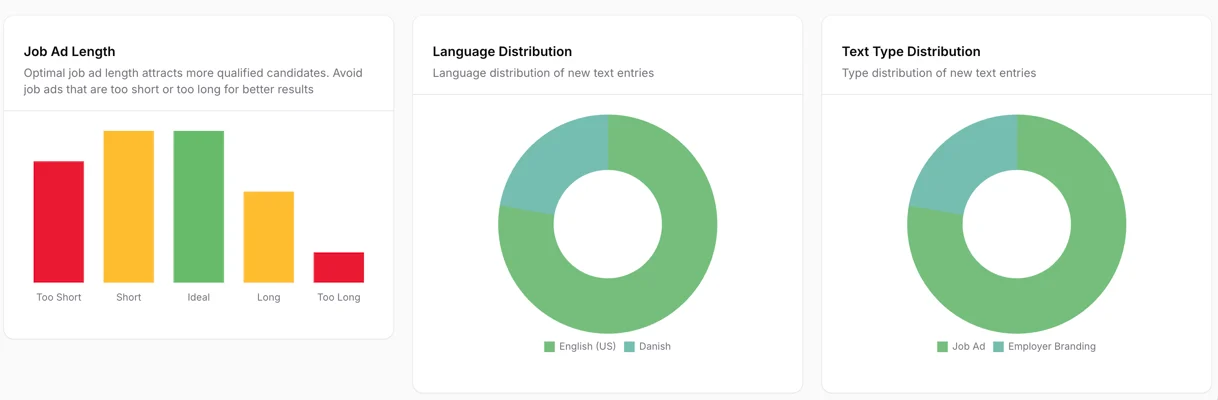
Job Ad Length

View the distribution of the length of job ads created in Develop Diverse. Ideally all your job ads have a job ad length between 300 and 650 words. See here the grouping:

Too short job ad: 0-150 words
Short job ad: 151 – 299 words
Ideal job ad: 300 to 650 words
Long job ad: 651 – 800 words
Too long job ad: >800 words

Language Distribution

View the distribution of text entries created in Swedish, Danish, and English during the selected time period.

Text Type Distribution

View the distribution of text types, including employer branding and job ads, for all text entries created in the selected time period.